Showing posts with label Windows 8. Show all posts

Monday, March 7, 2022

Solved: High disk memory and CPU usage windows operating system

 High disk, memory and cpu usage:

There are following reasons that may cause high disk usage:

1. Un-optimized disk

2. Un-necessary services running at the start up

3. Un-necessary applications running

4. Pending windows update

Solution:

1. Disk defragmentation: After a long time data stored in the disk may not be properly fragmented, which can cause high disk usage or high cpu utilization. Open disk fragmentation by navigating to Start button and typing and opening "Defragment and optimize drives"


Select all the drives one by one and analyze it.

Once analyzed, select the drives one by one and click on Optimize. 

2. Check and disable un-necessary start up services:

Un-necessary start up service may cause high disk and cpu usage.

Open task manager, under application, check for the applications that are no longer required to be started at the start up.


Select the service, right click and click on disable for the services that are not required to be started at the start up.

3. Kill processes that are not required to be running in the background

Un-necessary process may cause high disk and cpu usage.

Open task manager, under processes, check for the processes do not belong to Windows and not required to be run by system all the time. You may end the process by selecting the process (which you know that not required to be run), right click on it and end task.

3. Disable un-necessary services: To disable un-necessary services, open run prompt (Windows+R) and type services.msc and hit enter:
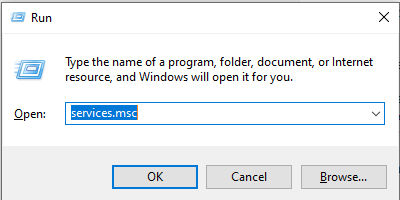


In the services list, look for the non-essential running status services (other then Windows services) that are not required to be run in the background. 


Right click on the service you would like to disable, click properties, under General tab, Startup type: Select Disable, click on Apply and OK


Make sure to restart the computer after applying any of the steps above.

4. Pending windows update:

There are pending windows updates may cause your system slow down.

Check and update the windows by following below steps

a. From the start button, search for windows update

b. Check for updates

c. Install updates and restart the system.

Monday, September 14, 2015

Older programs not compatible with Windows 7‏ or above

Not all, but some older programs may not work in Windows 7 or Windows 8 or above. Desktop applications and software written for Windows Vista should work for Windows 7 as well but some older programs might  have compatibility issues. Before installing the software/programs, we need to check whether it is compatible with the Windows version you are using.  You might encounter an error while running programs which are not compatible for Windows 7 or others:

 Now we talk about what could be reason behind old programs not working in Windows 7. Programs designed for older versions of windows like Windows 98, Windows 2000, Windows XP or Windows Vista are tested for compatibility with these version and are not tested for future release of Windows operating systems like Windows 7 or so, we are not sure if they are going to work for newer release of Windows. However, when a newer versions of Operating system is released, this has been taken care most of the time so that older versions should work, depending on the class (or type) of device, many hardware devices need a new Windows 7 specific driver to function properly on Microsoft's latest operating system. It also depends on your operating system architecture, for an example if you are using Windows 7 64-bit and trying to install a program which is built for 32-bit motherboard, it will error out. Also, you get some options to run your software with different compatibility modes:
Let's talk about how can try to make incompatible software work in Windows 7.  User following steps to run your program in Windows 7.

Right click on the program(exe file/setup file), click on properties, click on compatibility tab and follow the instructions below, once you make change any of these properties, try running the software:
Compatibility mode: Runs the program using settings from a previous version of Windows. Try this setting if you know the program is designed for Windows 7 version of Windows.
Reduced color mode: Uses a limited set of colors in the program. Some older programs are designed to use fewer colors.
Run in 640 × 480 screen resolution: Try this setting if the graphics for the program appear jagged or are rendered improperly.
Disable display scaling on high DPI settings: Turns off automatic resizing of programs if large font sizes are used. Try this setting if large-scale fonts are interfering with the appearance of the program.
Run this program as an administrator: Some programs require administrator privileges to run properly. If you aren't signed in to your Windows 7 PC as an administrator, this option is unavailable.
Change settings for all users: Lets you choose settings that will apply to all users on your Windows 7.

You can also try running program compatibility troubleshooter in Windows 7 as below:
Run the Program Compatibility Troubleshooter:
Open the Program Compatibility troubleshooter by clicking the Start button in Windows 7, and then clicking Control Panel. In the search box, type troubleshooter, and then click Troubleshooting. Under Programs, click Run programs made for previous versions of Windows.

Tech That Protects Your Health While You Work Online All Day

The slow problem I didn’t notice until it was already happening. Working online all day can seriously affect your health if your workspace i...